SD Maid 2/SE
App Cleaner
The AppCleaner tool is an app aware tool that finds “expendable” files. A file is considered expendable if it can be deleted without adverse effect and is either not necessary, or will be recreated if needed. Most types of files in a “cache” fall under this definition.
Settings
Include system apps
This setting will include system apps in the results. This is not enabled by default as some system apps (depending on the ROM) react adverse to their cache being cleared. Some system apps also don’t have a “Clear cache” button which can cause SD Maid to get stuck when clearing cache via accessibility service.
Include other users
Requires root. If enabled, SD Maid will search other user folders in addition to the user which is currently running SD Maid.
Include running apps
Whether to include running apps or not.
Minimum size
How large does an apps cache have to be to be listed. Specifing a minimum size is a good compromise of utility and speed. Clearing an apps cache if it is only a few KB in size has usually no beneficial effects. This applies to the total amount of cache found for an app (considering all active filters)
Minimum age
Can be used to only delete old cache files. Is applied to each file or folder in the results.
Include inaccessible caches
Depending on the permission available to SD Maid, some files may not be directly accessible. Commonly this refers to private default app cache (e.g. /data/data/eu.darken.sdmse/cache). If this setting is enabled, SD Maid will try an accessibility service to navigate to the system settings and press the Clear cache button for the target app.
Filter
You can enable/disable different filters to influence what results the AppCleaner tool will turn up.
Common filters
Common filters target various file types across all apps.
Specific filters
Specific filters target specific apps, e.g. WhatsApp or Telegram.
Troubleshooting
com.miui.securitycenter
Missing GET_USAGE_STATS permission
MIUI and HyperOS use an extra app called “Security” or “Security Center” (packagename: com.miui.securitycenter) to show the system details for an app. The normal flow of actions, to clear an apps cache is: Click Clear data, Select Clear cache, Confirm action.
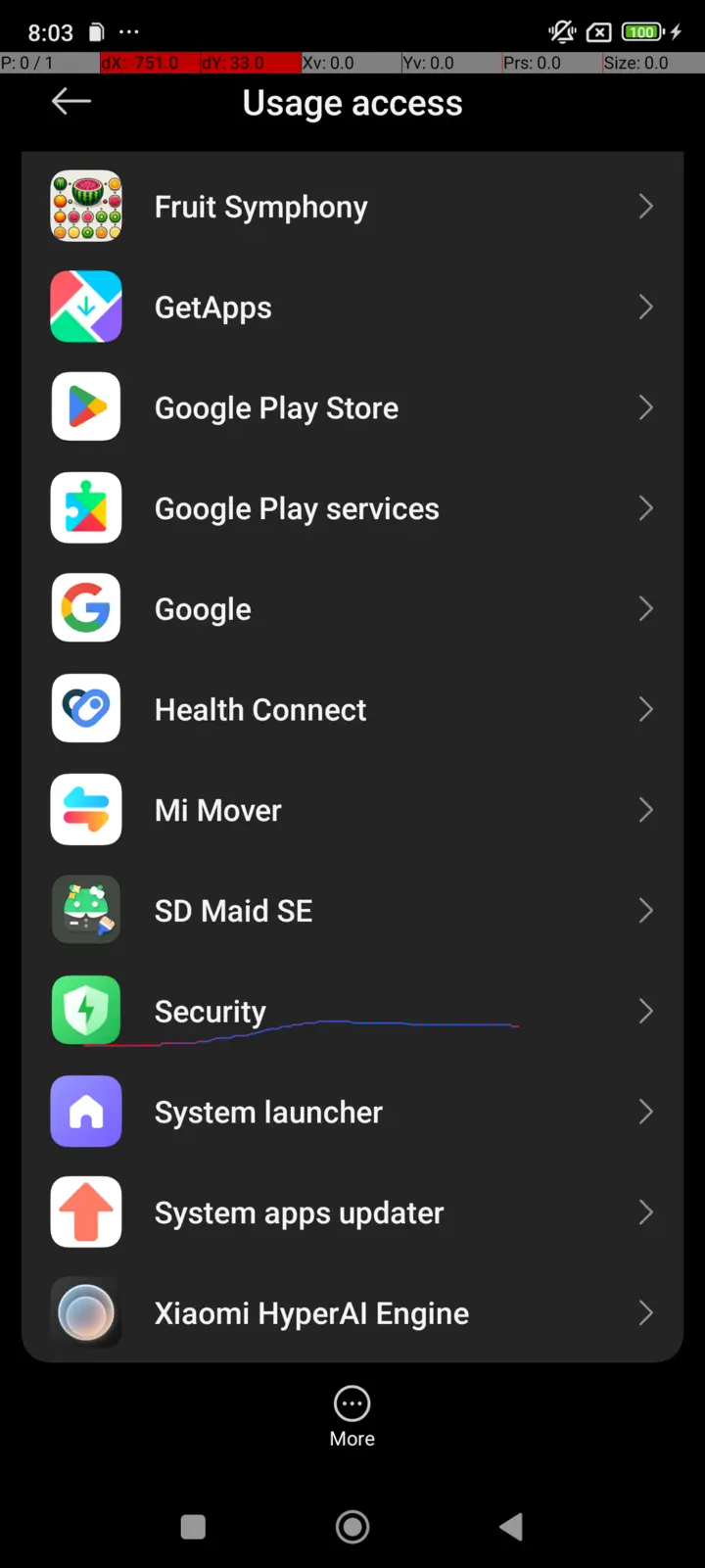
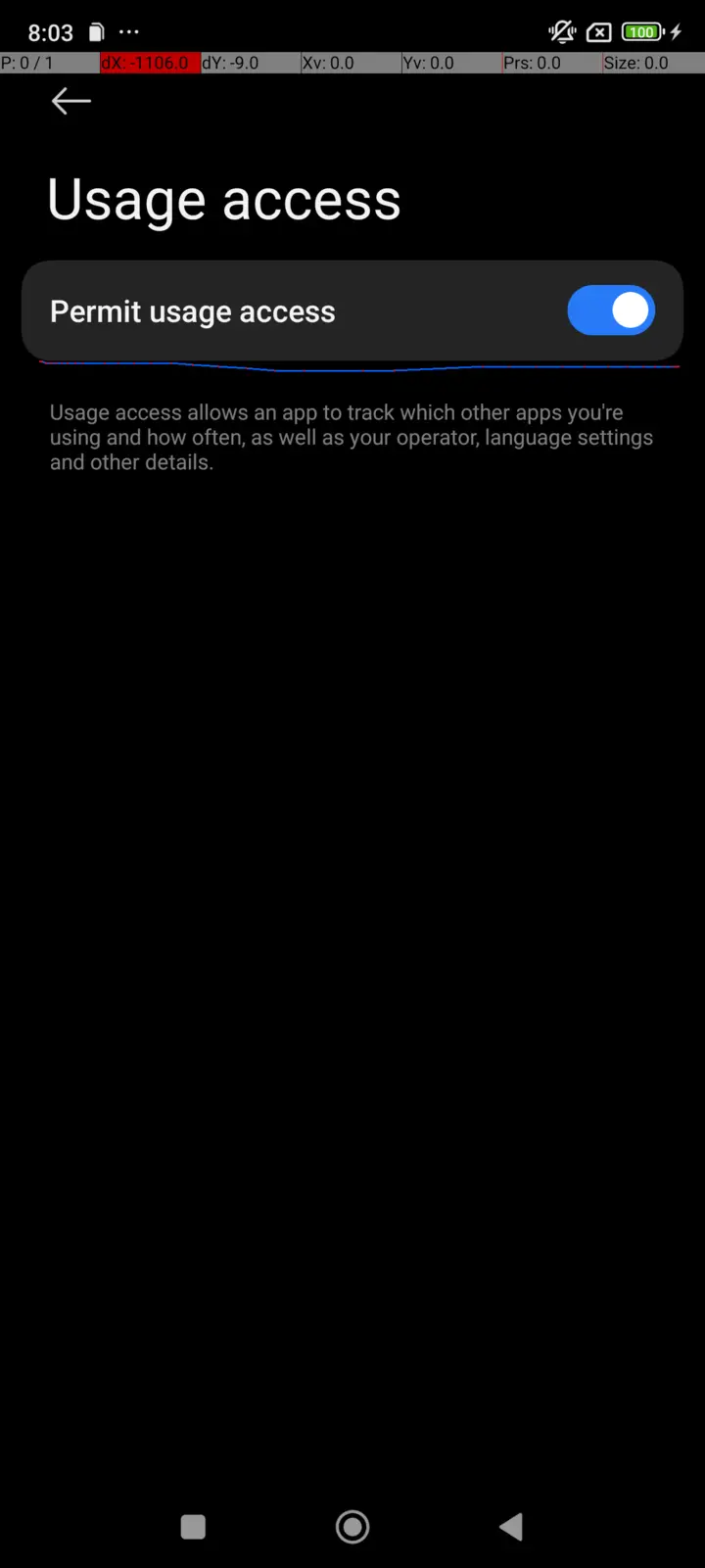
If the ‘Clear data’ button is greyed out for all apps, and can’t be clicked, then the “Security Center” app is missing the permission GET_USAGE_STATS. Normally this should be granted by default. It’s unclear how this happens, but the solution is to re-grant that permission.
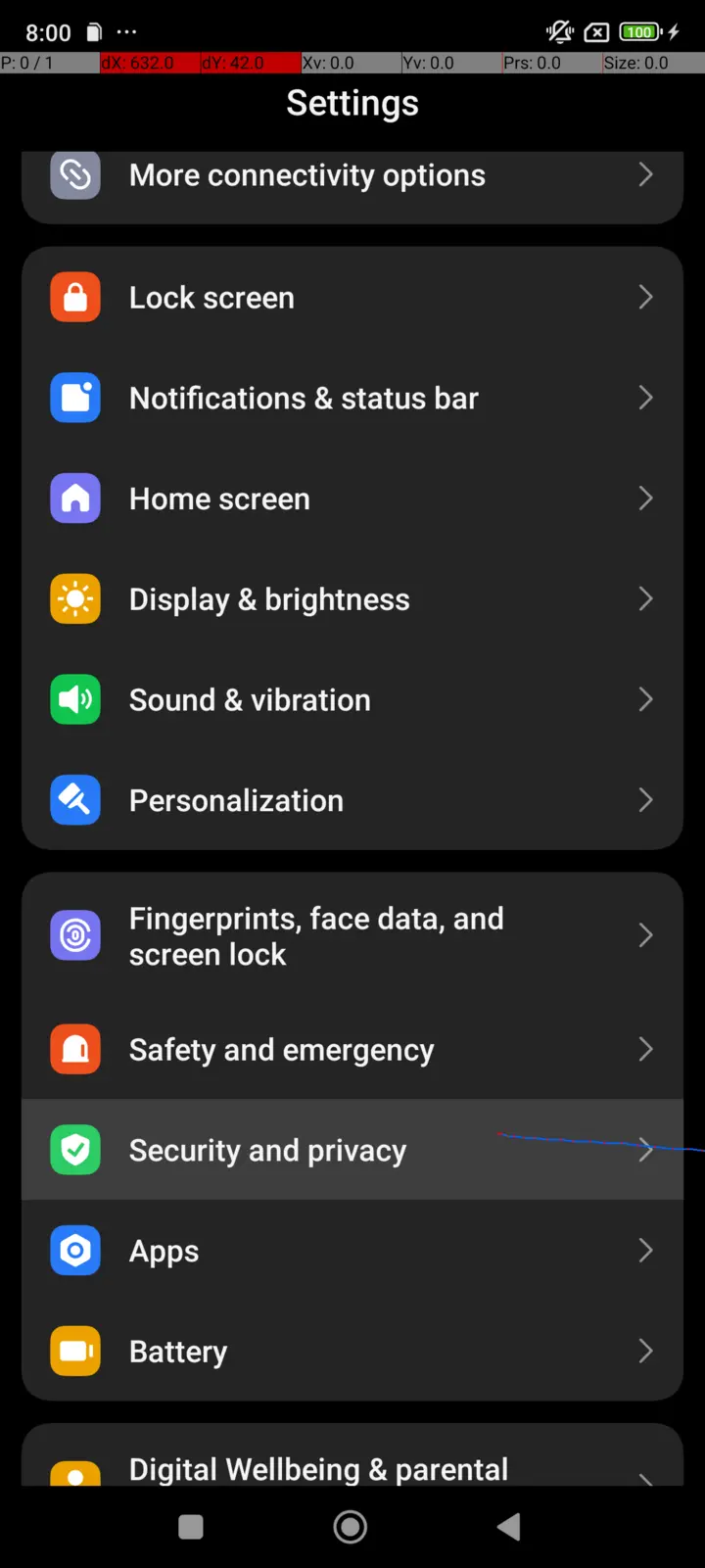
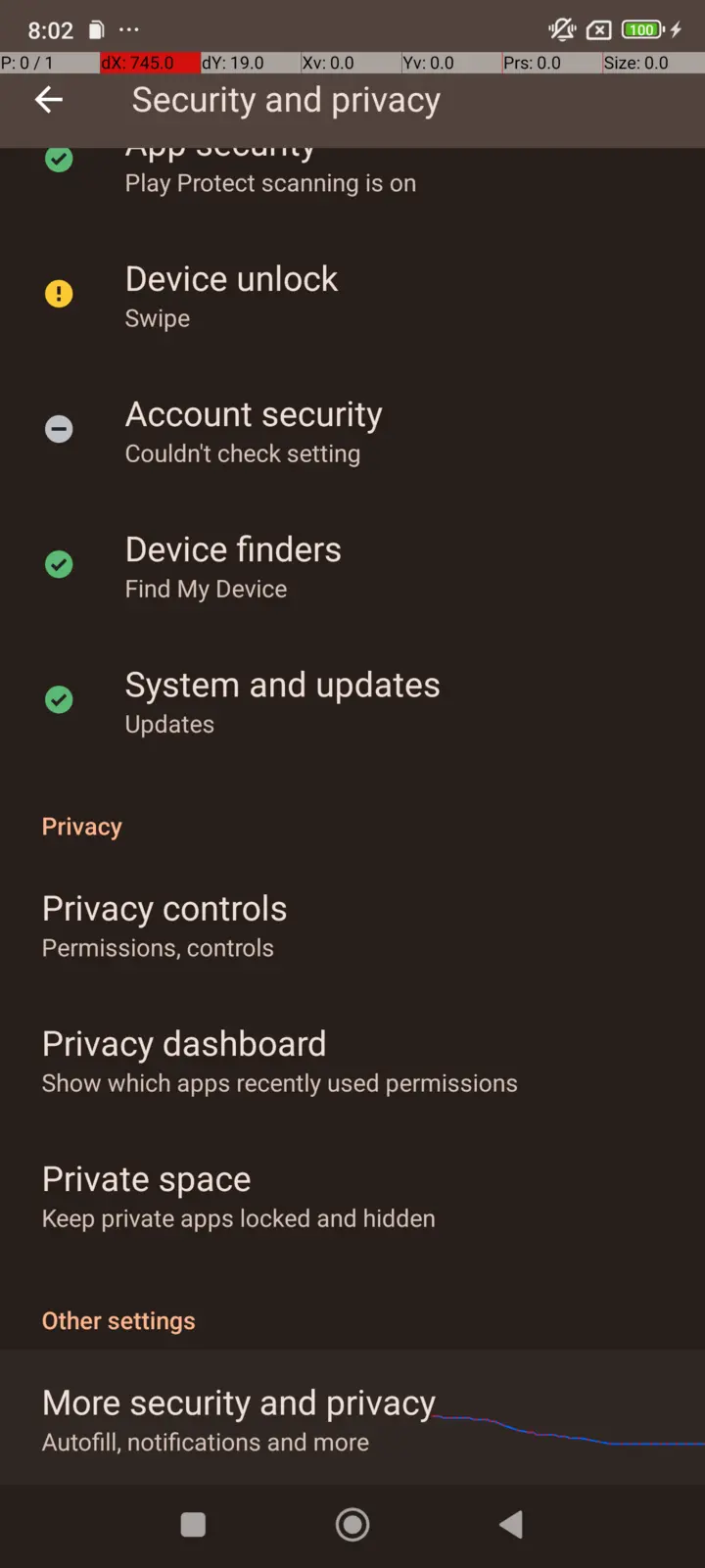
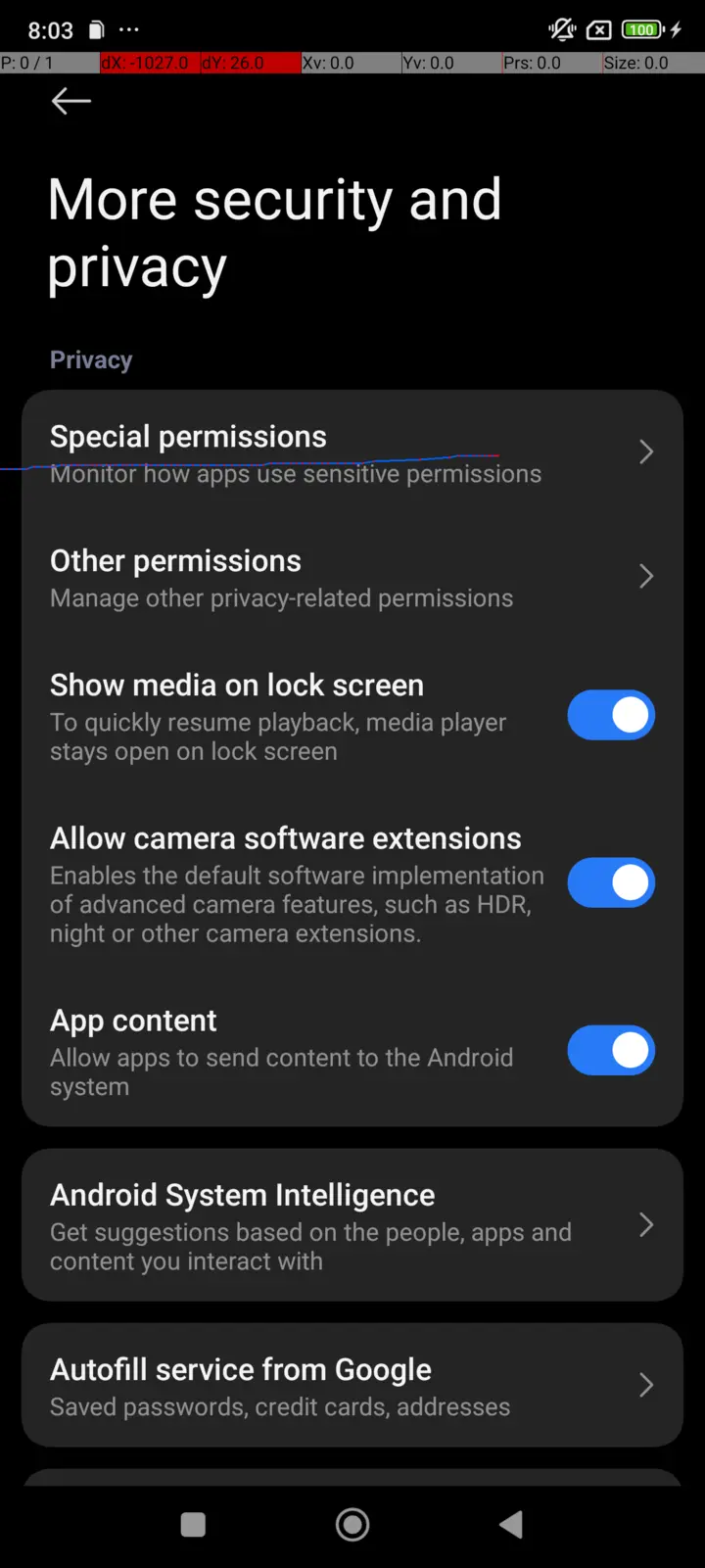
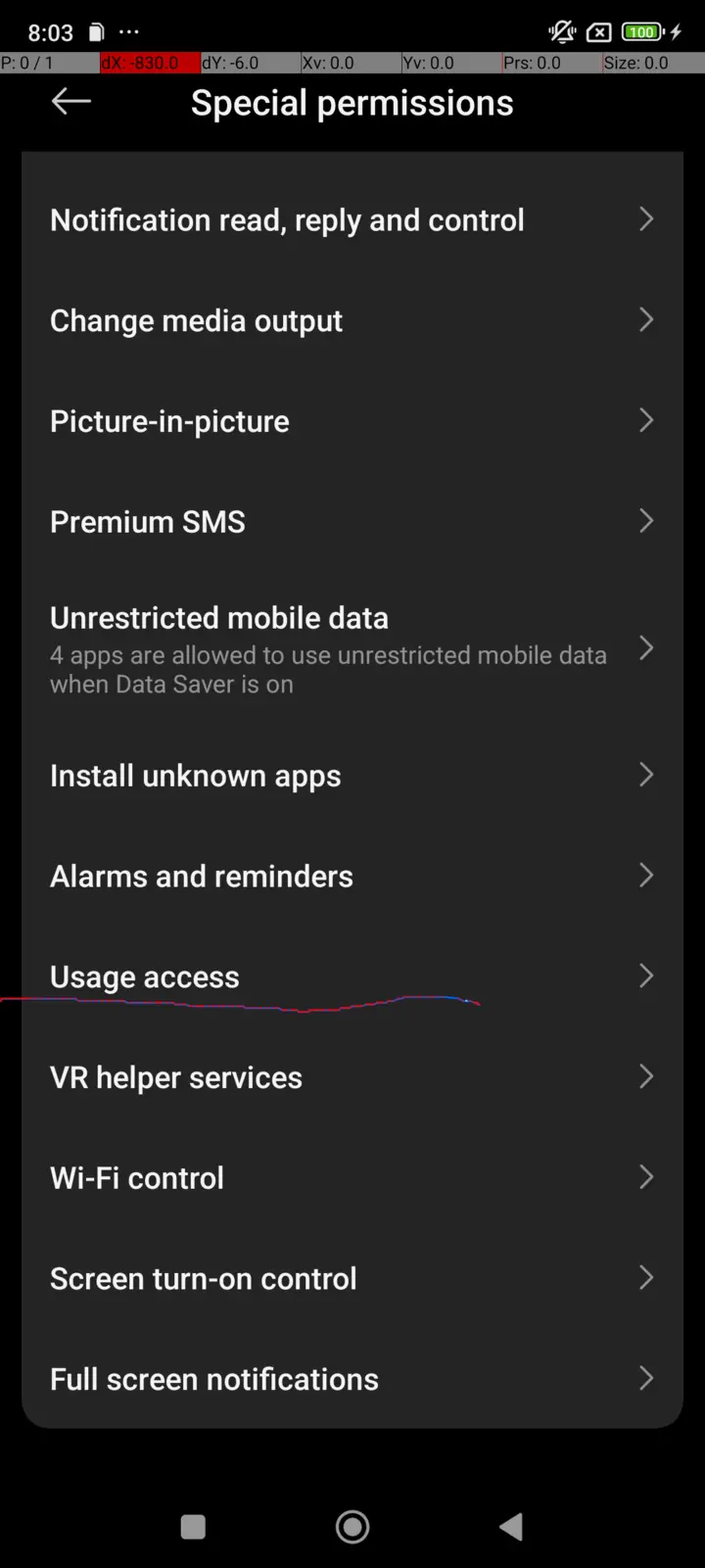
Go to: System Settings > Security and privacy > More security and privacy > Special permissions > Usage access > Find the Security app > Grant the permission
Alternatively, if you have ADB access or greater, run the command pm grant com.miui.securitycenter android.permission.PACKAGE_USAGE_STATS