 SD Maid 2/SE
Setting up SD Maid SE
Information about different SD Maid SE setup steps.
SD Maid adapts to what access is available. While all permissions are optional, if you don’t grant any permissions, most features will not work. SD Maid will perform best when all setup items are completed.
SD Maid will automatically try to complete some of the setup steps if root or ADB access is available.
Some permissions overlap or are supersets of each other, e.g. you can give SD Maid both root access and ADB access. SD Maid will always try to use the best possible access method for any action, and if that fails, retry with the second best access method and then third best etc. Granting SD Maid overlapping permissions improves reliability.
Tip: Some setup steps below involve running ADB commands. If you don’t have ADB set up on your computer, you can use the Web ADB Helper to run them directly from your browser.
Manage Storage
The “manage storage” permission is a broadly scoped storage access permission.
- On Android 12 and earlier it grants access to all public storage.
- On Android 13+ it still grants access to all public storage, but not to sub-directories under
Android/data.
Usage statistics
Usage statistics permissions give SD Maid access to data, cache sizes and if an app is running or when it was last used.
Storage Access Framework
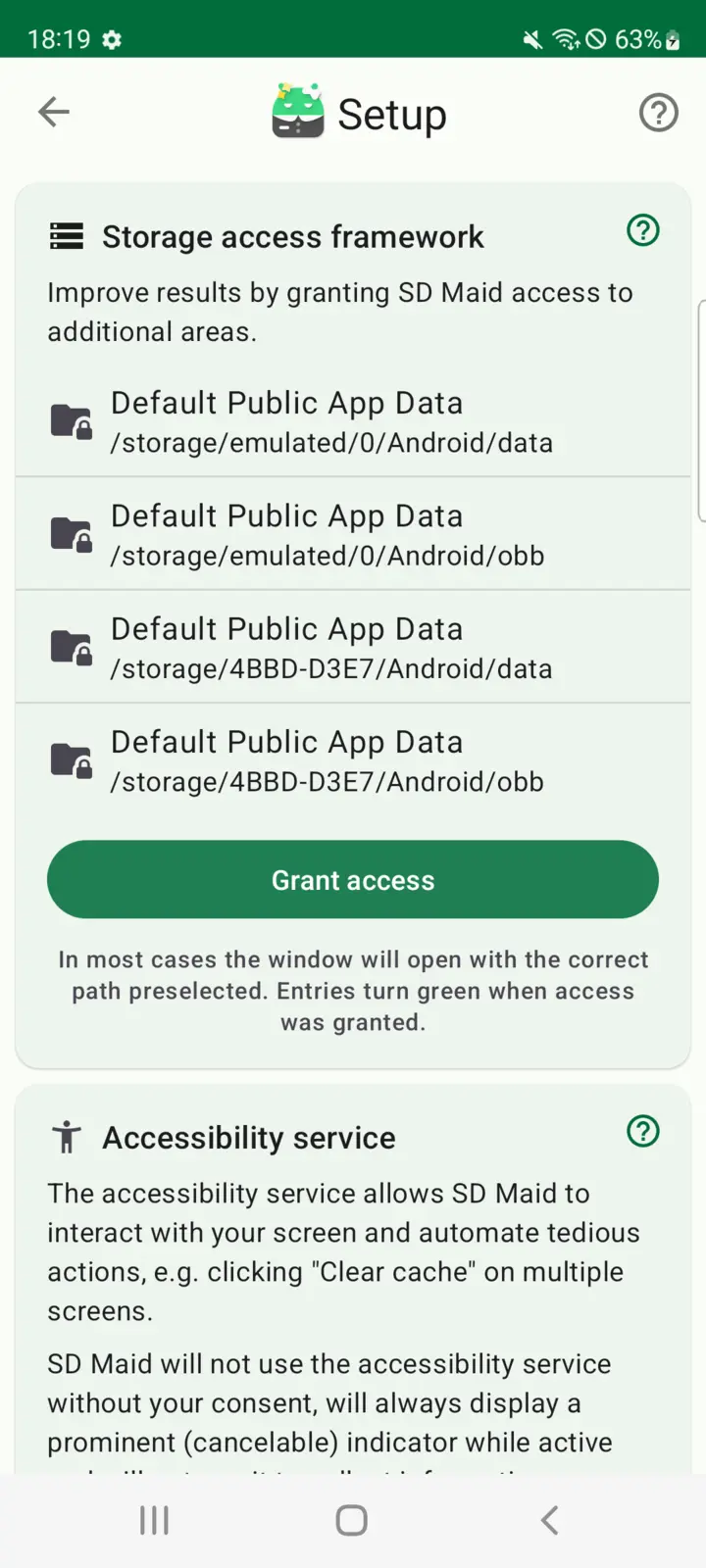
SD Maid uses the Android Storage Access framework (SAF) to gain access to additional storage areas. SD Maid will ask you to grant access to specific paths that are not accessible by just having the “Manage storage” permission (Just Android Things™️).
- Press the
Grant accessbutton - A new window opens
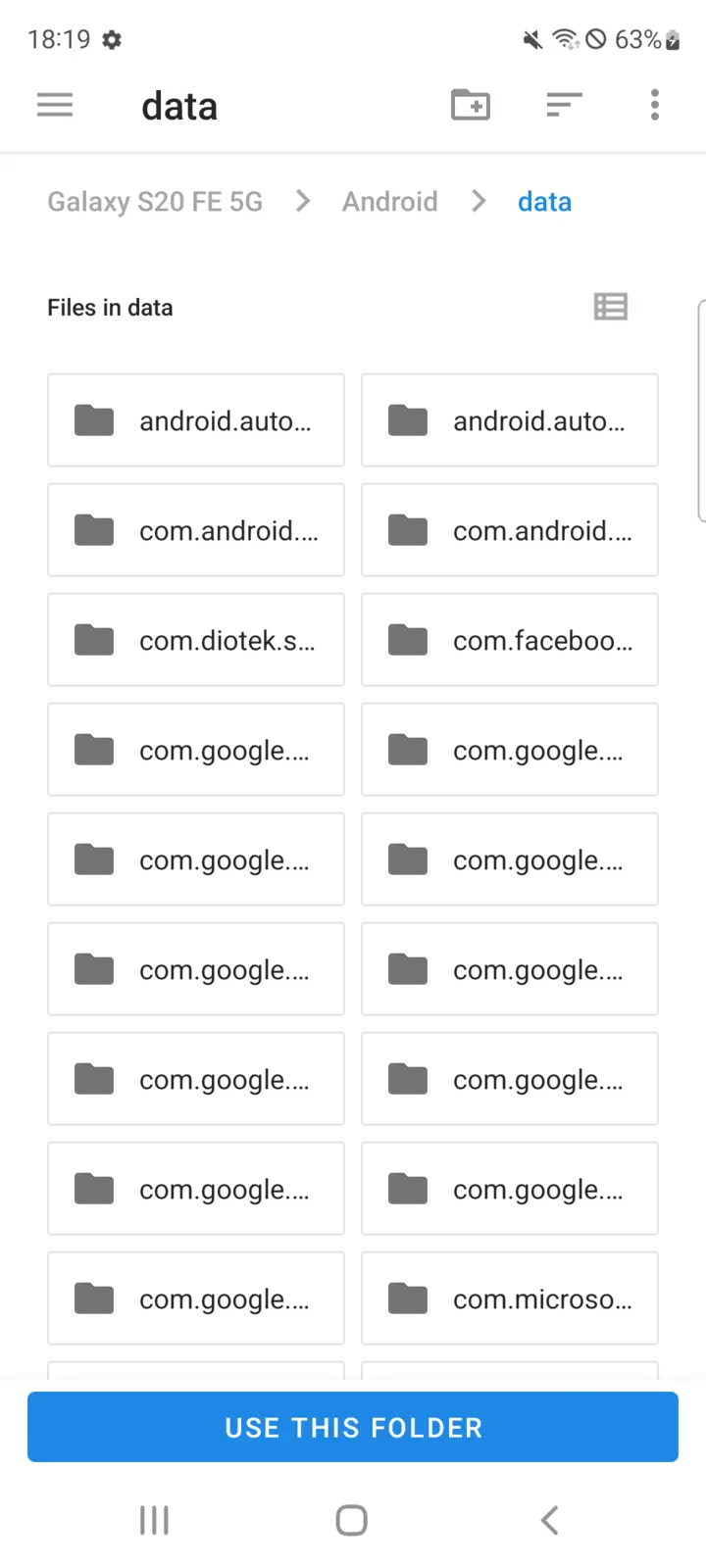
- If the correct path is already selected, otherwise you have to navigate to the path that SD Maid wants.
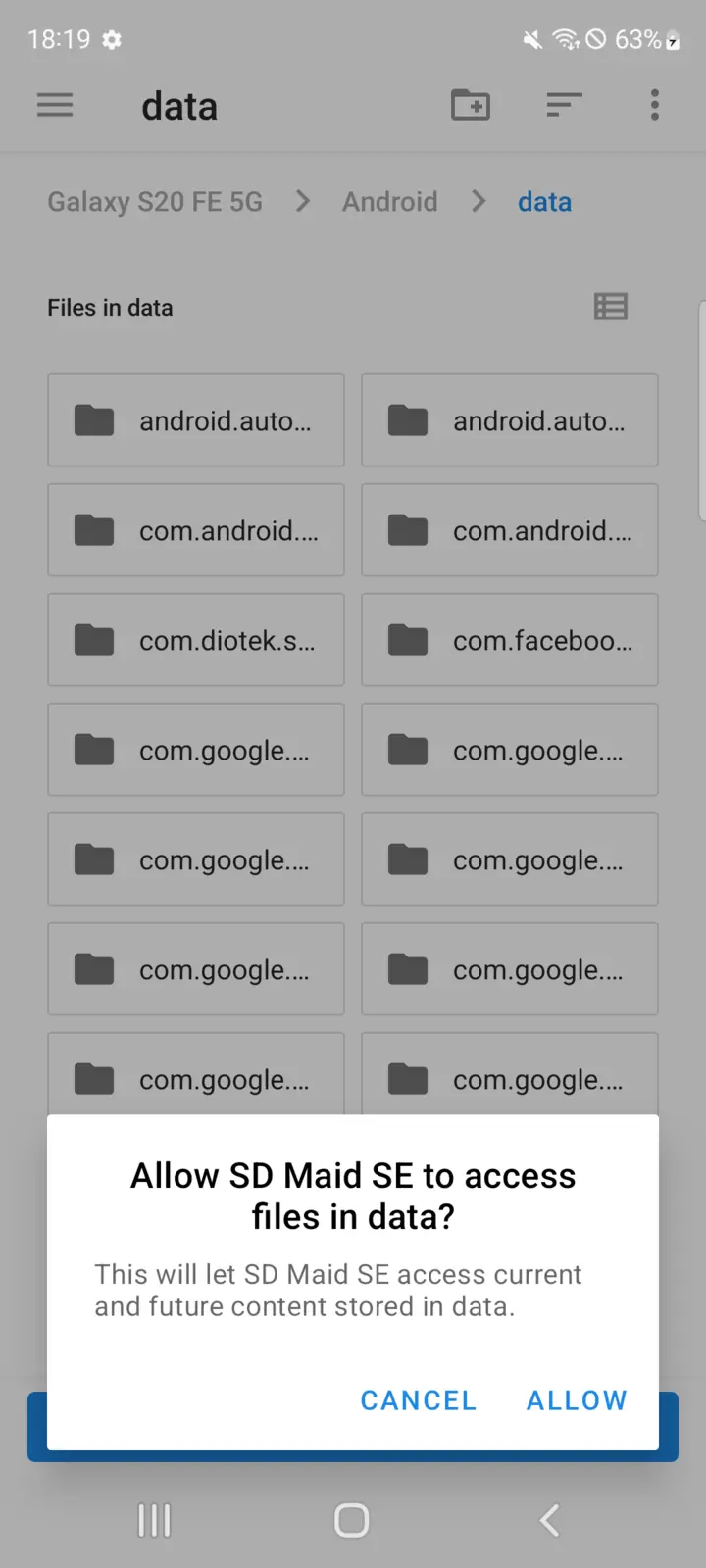
- Then press the
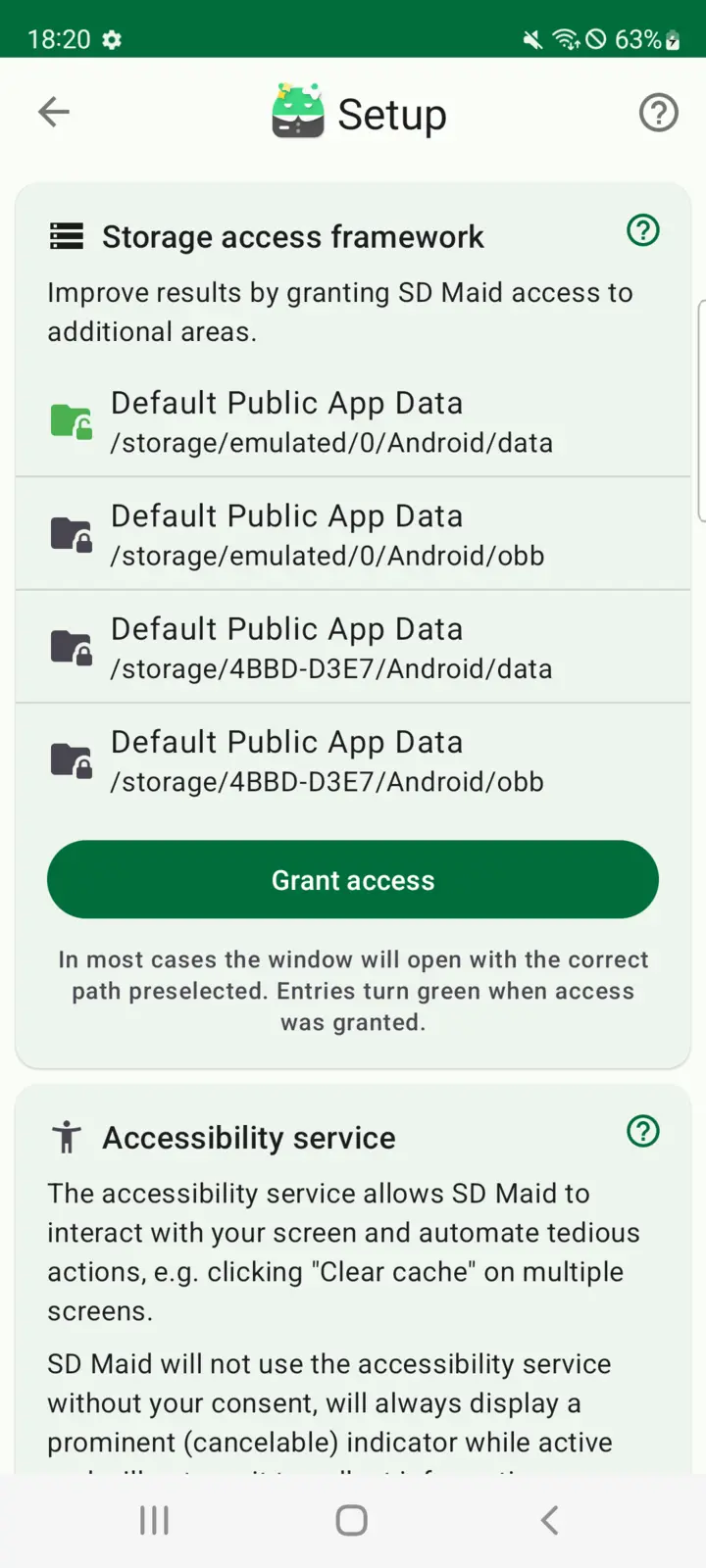
Use this folderbutton, the setup entry for this path will unlock and be colored green.
Repeat this process until all paths are green.
SAF: Troubleshooting
For when things don’t go as planned.
SAF: Android/data|obb access
Granting access to Android/data|obb is not possible with newer versions of the system’s Files app (com.google.android.documentsui) on Android 11 and Android 12. If the installed Files app targets Android 14 (API-level 34) or newer, then SD Maid will hide the SAF access request for these paths (like on Android 13+).
Google Play updates the Files app through the Google Play system update service. The original “Files” app (build for API-level 31, e.g. aml_doc_310851020 (310851020)) that came with Android 12 OS, allows SD Maid to open the SAF path selection window on Android/Data while the latest “Files” app (build for API-level 34 or later, e.g. 14-10492947 (340916000)) prevents this.
Workaround:
You can uninstall the update to the Files and then set up SD Maid. Updating the Files app again will not break already granted permissions.
- Open device settings
- Go to “Apps & notifications” or “Application Manager”
- Find the
Filessystem app - Tap on the three-dot menu, usually on the top right corner
- Choose “Uninstall updates”
or
You can also run this command using the Web ADB Helper.
adb uninstall com.google.android.documentsui
SAF: OPEN_DOCUMENT_TREE ActivityNotFoundException
Granting access to paths via the Storage Access Framework requires an app that lets the user confirm the paths to which access will be granted. This app is the “Documents” app. It’s a system app that is built into every Android device since Android 5.0 (com.android.documentsui or com.google.android.documentsui). If you get this error, then either someone deleted or disabled this app. In most cases someone ran an overzealous “de-bloating” tool that disabled it. You can re-enable it via ADB:
You can also run these commands using the Web ADB Helper.
adb shell pm enable com.android.documentsui
or
adb shell pm enable com.google.android.documentsui
SAF: Empty window
If the window used to grant access to paths is empty, then your external storage provider package (com.android.externalstorage) is maybe disabled (likely through an overzealous “de-bloating tool). You can re-enable it via ADB:
You can also run this command using the Web ADB Helper.
adb shell pm enable com.android.externalstorage
Running the Google Play system update again will restore the update. You can also manually download an updated version from APKMirror.com.
Notifications
Without this permission SD Maid won’t be able to post notifications. On some ROMs this may negatively affect reliability when executing in the background.
App inventory
SD Maid requires the permission QUERY_ALL_PACKAGES to check which apps are installed on your device (i.e. “visibility into the inventory of installed apps”). Also see “Usage Stats Permission”
The QUERY_ALL_PACKAGES permission is mandatory for:
- CorpseFinder: To understand which files can be deleted, SD Maid needs to know if you have apps installed that might need them.
- AppCleaner: Determine caches for each app
- AppControl: Being able to list all installed apps
- StorageAnalyzer: Attribute used storage to installed apps
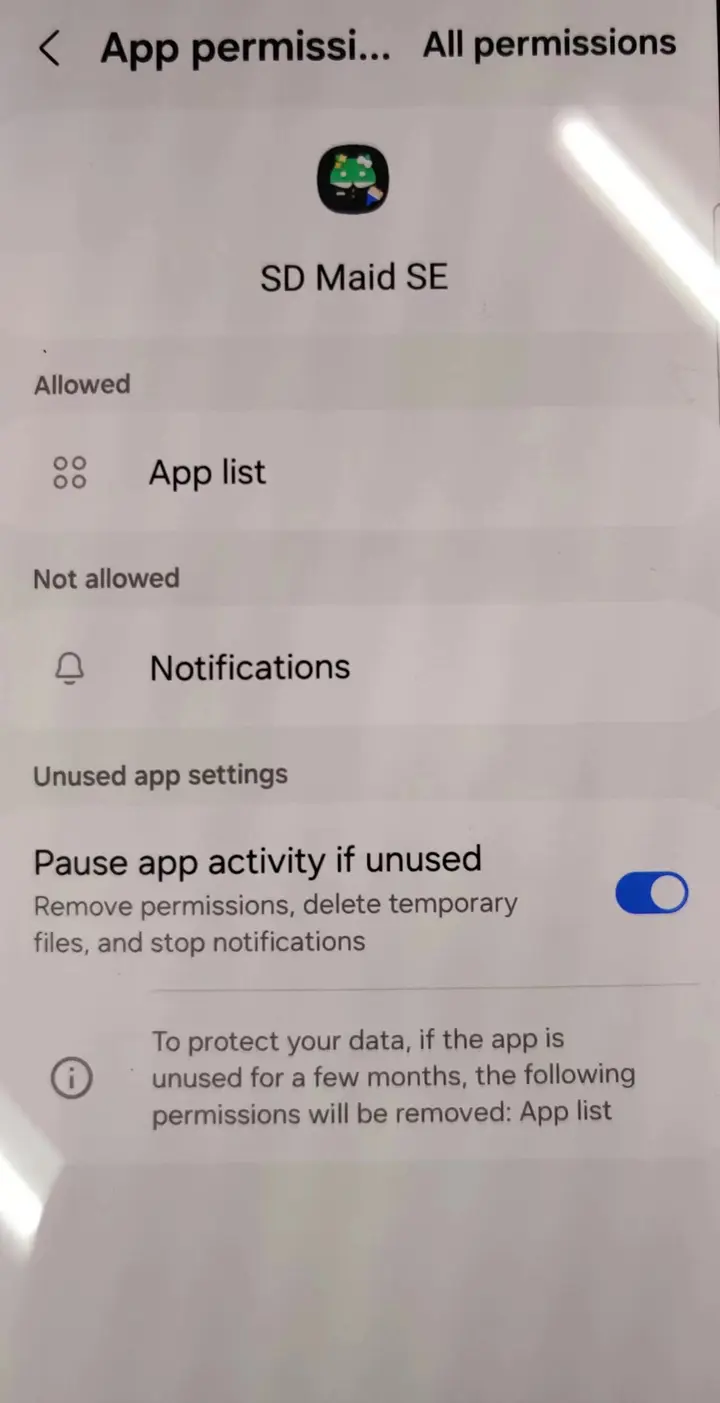
This permission exists since Android 11 and is normally granted by default. Since Android 14 some devices (e.g. #1015, #1354) exist where the permission is not granted by default or can be revoked.
Invalid app list
On some devices the “App list” permission (QUERY_ALL_PACKAGES / GET_INSTALLED_APPS) is granted, but the system still returns an incomplete list of installed apps, for example a list that is missing core system packages like android. When SD Maid detects this it shows an “Invalid app list” warning and a “Possible device limitation” note in the setup card instead of continuing.
SD Maid stops here on purpose: if it can’t see the full list of installed apps, it can’t reliably tell which files belong to an app that is still installed. Continuing anyway could mean deleting data that belongs to an app SD Maid simply couldn’t see, so app-related features stay disabled until a complete list is available.
What you can try:
- Open your system settings and make sure SD Maid is allowed the “App list” permission. On some manufacturers this toggle has a different name (e.g. “Query all packages”) or lives inside a separate “Privacy” or “Permission manager” screen.
- Check whether a built-in battery saver, privacy guard or “app hiding” feature is filtering the list of apps SD Maid can see, and exclude SD Maid from it.
- Reboot the device and reopen SD Maid so the permission state is re-evaluated.
If the “App list” permission is already allowed and the list is still reported as invalid, this is usually a device limitation rather than something you can fix: some systems (for example HarmonyOS, or heavily modified Android builds) never hand a complete app list to third-party apps. See #2441 for an example.
In that case the app-related tools (CorpseFinder, AppCleaner, AppControl) stay disabled to protect your data, but the StorageAnalyzer still works: it shows how much space your storage is using, just with reduced detail: folder sizes are shown read-only and can’t be attributed to individual apps.
Accessibility Service
The accessibility service allows SD Maid to interact with your device like a human, i.e. viewing the screen and pressing buttons. SD Maid can use it to automate tedious actions like pressing “Clear cache” on hundreds of apps. The accessibility service is a service that the app itself can not launch, it must be launched by the system, because this type of service grants an app additional access to your device.
ACS: Troubleshooting
The service may stop running and require you to enable it again in various circumstances:
- You update the app.
- The app crashes. If this happens you should report this as a bug. If this happens too often you may not be able to restart it by turning it off/on again until the device is rebooted.
- The system kills the app due to overly aggressive “battery optimizations” (also see https://dontkillmyapp.com/)
- The manufacturer’s own security app switches it off (see Blocked by Phone Manager)
ACS: Service is disabled
Some ROMs (e.g. MIUI) are notorious for aggressively stopping everything that is not whitelisted by the device manufacturer. If you are constantly asked to re-enable the accessibility service then the system may be disabling it every time SD Maid is not in active use.
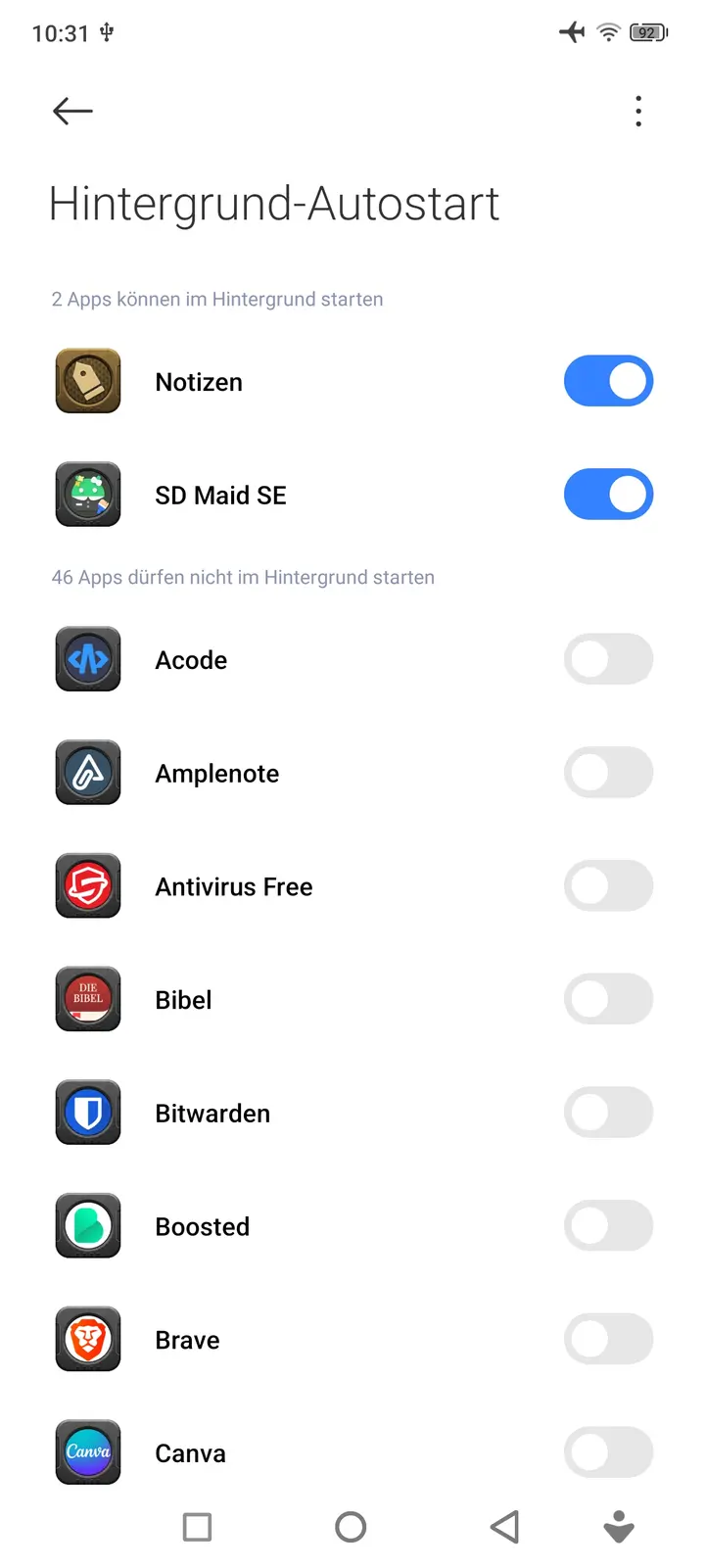
Try to disable battery optimisations and on MIUI ROMs there is an extra setting called “Autostart” enable that for SD Maid. For Xiaomi/POCO/Redmi devices:
- Go to
Security>Manage applications>Auto start in backgroundand allow this for SD Maid. - Go to
Security>Increase speed>Lock appsand select SD Maid.
You can also consider granting additional permission that allow SD Maid to restart the service automatically.
ACS: Blocked by Phone Manager (OnePlus, OPPO, Realme)
On OxygenOS and ColorOS the preinstalled “Phone Manager” app can switch the accessibility service off on its own, typically within a second of a clean-up finishing. Android’s accessibility toggle is genuinely off afterwards, so it looks like SD Maid stopped working mid-run.
Turn the feature off under Phone Manager>Utilities>Block suspicious app activities.
That same screen keeps a list of what it blocked. Entries labelled “Abnormal device control” with timestamps matching clean-ups you ran confirm this is the cause. The “Blocking alerts” switch next to it only controls whether you get notified, so with alerts off this happens silently.
ACS: Enable via ADB
If your device doesn’t have a way to enable accessibility services via screen (e.g. a TV device), it’s possible to enable the service using ADB by running:
You can also run this command using the Web ADB Helper.
adb shell settings put secure enabled_accessibility_services eu.darken.sdmse/.automation.core.AutomationService
ACS: Automatic service restart
Note: This is an advanced technique and targeted towards power users.
You can grant an additional permission that allows SD Maid to restart the service on its own.
The permission is called WRITE_SECURE_SETTINGS and can only be granted via ADB.
If you have this set up, run this command to grant the permission:
You can also run this command using the Web ADB Helper.
adb shell pm grant eu.darken.sdmse android.permission.WRITE_SECURE_SETTINGS
With this permission granted, SD Maid can use the command described here to enable the service when necessary. SD Maid will only use this if you have enabled the accessibility service at least once manually. If you go into setup again and tell SD Maid to not use the accessibility service, then this automatic restart technique will not be used until you manually enable the accessibility service again.
To remove this permission from SD Maid again, use this command:
You can also run this command using the Web ADB Helper.
adb shell pm revoke eu.darken.sdmse android.permission.WRITE_SECURE_SETTINGS
If you are getting Operation not allowed: java.lang.SecurityException, see here. Some devices restrict ADB permission. See if there is an extra setting (e.g. Disable Permission Monitoring) in the developer settings that needs to be toggled, after using the command, you can disable it again.
ACS: Advanced Protection
On Android 17 and newer, Google’s Advanced Protection mode blocks apps that aren’t dedicated accessibility tools (screen readers, switch access, etc.) from using the accessibility service. SD Maid is a maintenance/cleaning tool, so while Advanced Protection is enabled its accessibility service cannot be enabled. Android rejects the service at the system level, even if you try to grant it through root or ADB access.
SD Maid cannot exempt itself from this: Only apps Google classifies as accessibility tools are eligible, and cleaners are explicitly excluded.
You have two options:
- Use root or ADB access When root or ADB access is set up, SD Maid’s AppCleaner clears app caches through a direct system call and does not need the accessibility service. With root this also covers cleaning individual selected apps. With ADB access a full “clean all apps” run works without the accessibility service, but clearing the cache of specific selected apps still relies on it. Set this up under SD Maid’s Setup → Root access or ADB access.
- Turn Advanced Protection off if you specifically want accessibility-based cleaning. It’s under
Settings → Security & privacy → Advanced Protection(the exact path varies by device). Turning it back on later will disable the accessibility service again.
ACS: AppOps Restrictions
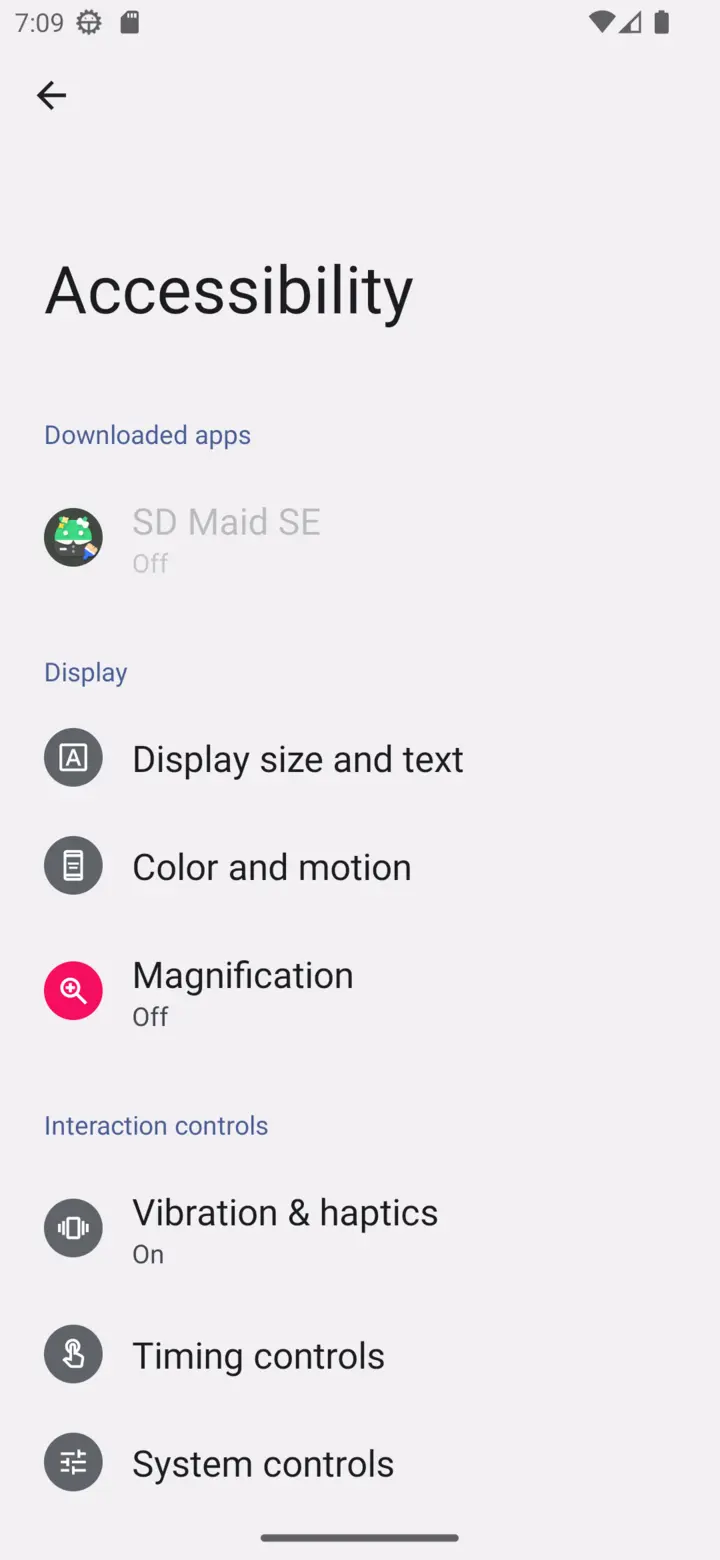
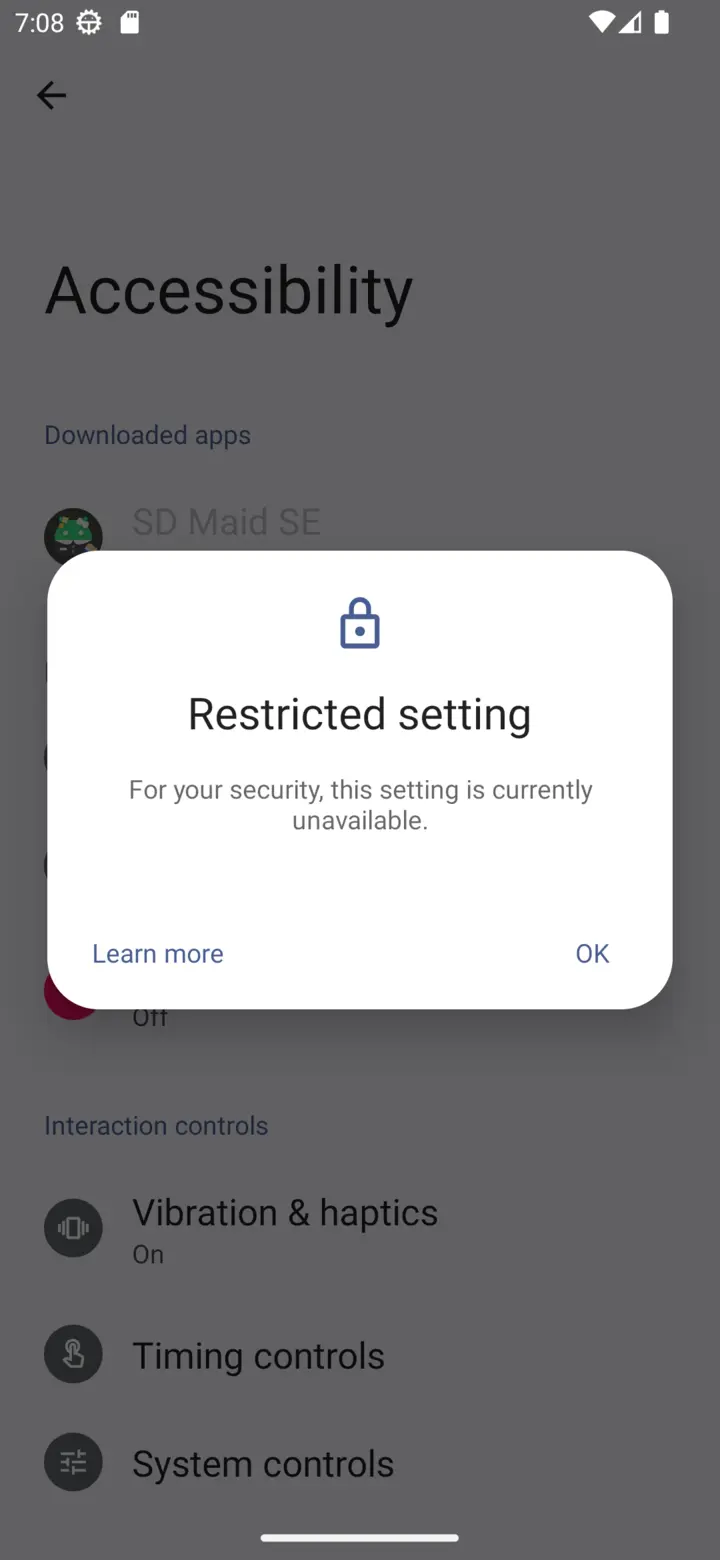
Android 13+ may apply additional restrictions to apps that have been side-loaded. So if SD Maid is not installed from a known (to Google) source like Google Play or other app stores, then you from may not be able to directly grant some permissions to SD Maid, e.g. start an accessibility service.
OxygenOS 15 - OnePlus
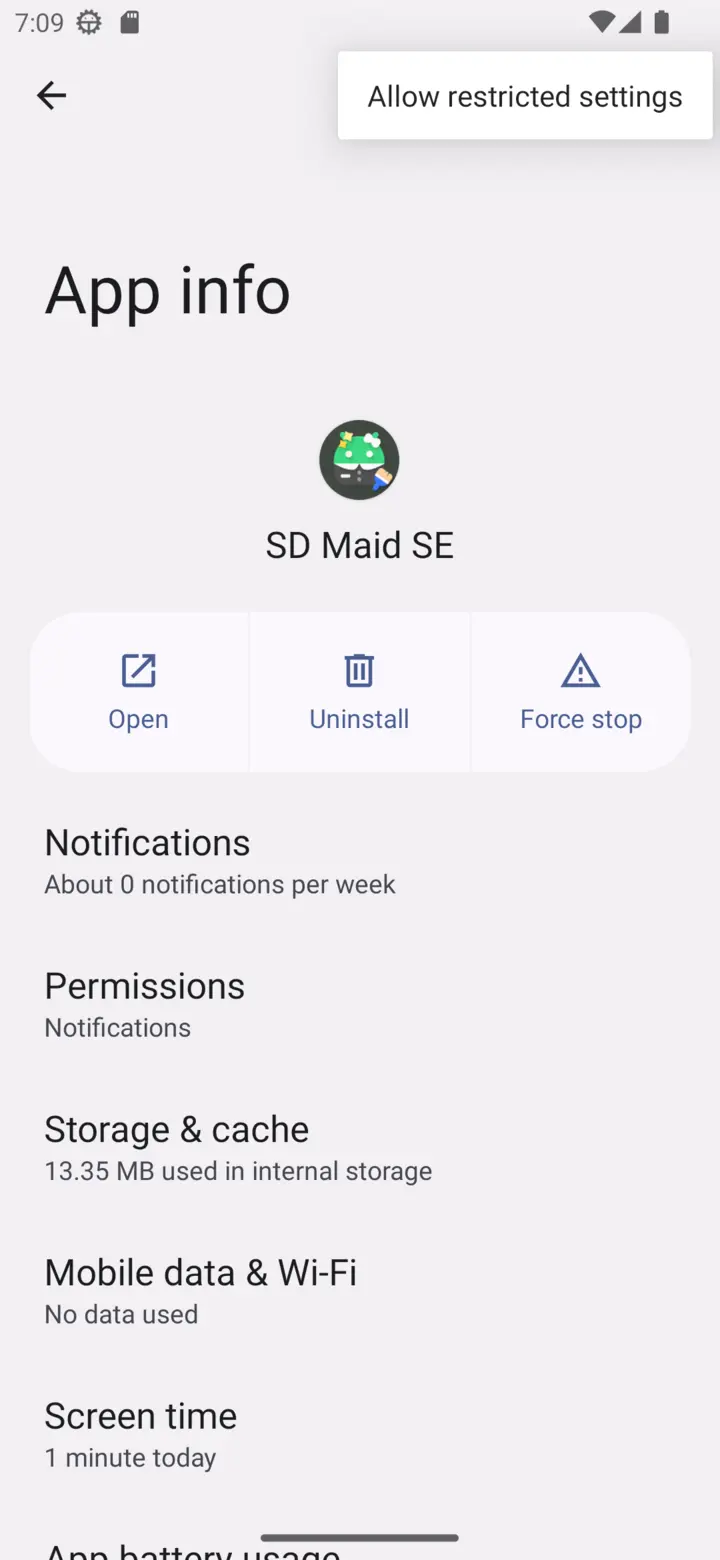
OnePlus forgot to (or just didn’t) include the Allow restricted settings action in app settings in OxygenOS 15. If you are not installing through Google Play then the installer needs to set the INSTALL_ALL_WHITELIST_RESTRICTED_PERMISSIONS flag. If you have Shizuku set up, then you can use the “Install with Options” app.
Other ROMs
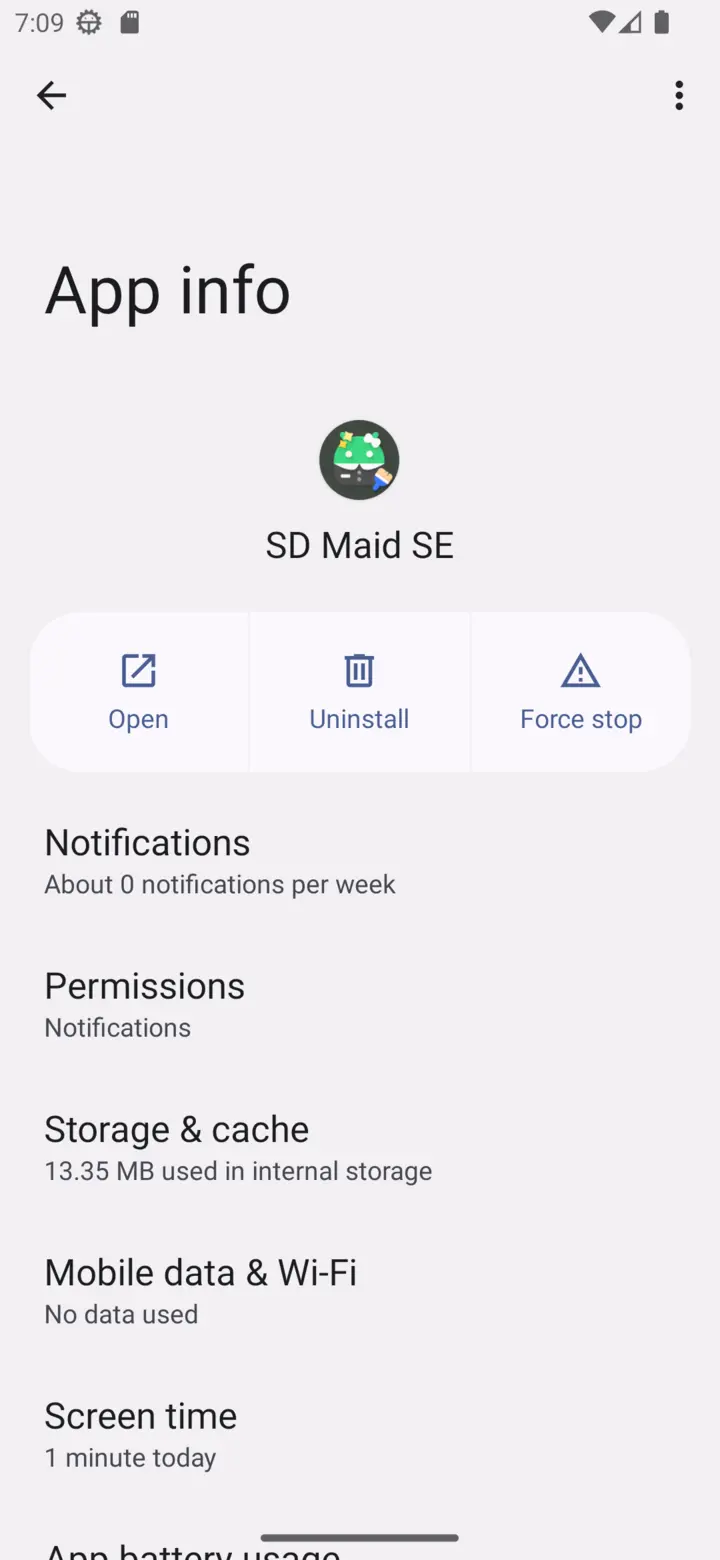
To lift these restrictions open SD Maids app settings screen in the system. Open the menu in the top right corner and select Allow restricted settings, afterwards you can go back to the list of accessibility services and enable SD Maid’s service.
Note: To improve usability (this is sarcasm), Google decided that this setting will only be visible if:
- You at least saw the “Restricted setting” once after clicking SD Maids accessibility service entry
- You have opened the system settings and navigated to SD Maid’s settings page by hand, and not through another app or shortcuts.
😮💨
Some additional background info can be found here.
Root access
With root access, SD Maid has full access to your device and can perform the most thorough scan possible. Usually this means that you unlocked your bootloader and set up Magisk.
If SD Maid thinks that your device may be rooted, then SD Maid will ask for root access first. If root access is granted, SD Maid will use the root access to grant as many of the other permission as possible. Root access is the highest level of access you could give an app, the other permission are then only required for ease of use and performance, which is why they don’t require extra consent during setup if SD Maid already has root.
ADB access
ADB access lets SD Maid use Android’s debugging interface (ADB) for elevated operations. It needs a separate app that runs an ADB service on your device and grants other apps access to it: Porter or Shizuku. It’s a modification you can make to your phone that other apps can take advantage of.
It’s similar to root, but not the same. The permissions are slightly less powerful, but the modification is not permanent and doesn’t require you to unlock your bootloader.
Porter
Porter is my maintained fork of Shizuku, with optional root support. Its website explains how to install and start it. On Android 11 and newer, wireless debugging lets you start it without a computer.
If you’re setting up ADB access for the first time, use Porter. The SD Maid builds from GitHub and F-Droid point you to Porter when no ADB access app is installed. The Google Play build points you to Shizuku on Google Play, but works with Porter the same way.
If both Porter and Shizuku are installed, SD Maid uses Porter. The setup card then says Porter is installed, so SD Maid waits for Porter instead of Shizuku. Start Porter to continue, or uninstall it if you want SD Maid to use Shizuku.
Using Shizuku
SD Maid also supports the original Shizuku by RikkaApps. If it already works for you, you can keep using it. For a new setup, use Porter.
Granting access
After you have set up Porter or Shizuku:
- In SD Maid’s setup, choose
Try to use ADB access. This is internal to SD Maid, you can use it to enable/disable SD Maid’s use of ADB access - After giving consent, a dialog from Porter or Shizuku asks whether SD Maid may use it
- Confirm the dialog
- The
ADB accesssetup card shows whether SD Maid can connect
Setting up ADB access, if you already have granted SD Maid Root access doesn’t enable additional features, but improves reliability. If actions fail with Root permission, then SD Maid will retry with ADB access.
ADB access: Troubleshooting
You can check SD Maid’s ADB access status by going to Settings > Setup and viewing the ADB access setup card. It should say SD Maid can now use ADB access through Porter (or through Shizuku).
Porter has not allowed SD Maid yet: confirm the access dialog, or allow SD Maid in the Porter (or Shizuku) app.Porter denies SD Maid access: SD Maid was denied permanently. Open Porter (or Shizuku) and allow SD Maid there.Update Porter to use it with SD MaidorThis version of SD Maid is too old for Porter: the two apps don’t share a compatible version. Update the one the card names.
Shizuku never connects
The card says ADB access failed and Shizuku is running, but it never connected SD Maid to its helper service. Older versions said Waiting for link with Shizuku or Shizuku link failed.
Open the Shizuku app. If it says it’s running and SD Maid is in its authorized list, the failure may be in Shizuku’s helper service rather than its setup. SD Maid gives up after about 15 seconds if the helper service doesn’t connect.
A known Shizuku bug (RikkaApps/Shizuku#1198) causes the helper service to crash on startup on affected MediaTek devices, including devices running HyperOS or MIUI. Retrying or granting permission again doesn’t fix that crash.
Try Porter, which includes a workaround for this helper-service startup failure:
- Install and start Porter using the instructions on its website
- Restart SD Maid so it connects to Porter, then grant access when Porter asks
- Check the
ADB accesssetup card to confirm SD Maid is connected
You can keep Shizuku installed for other apps. SD Maid supports Porter directly and doesn’t need the optional Porter Compatibility companion.